tilkbook + Google Meet integration
Offer virtual appointments with an automatic Google Meet link. When you mark a service as virtual and connect your Google Calendar, tilkbook generates a Google Meet video link for each booking and drops it into the confirmation email and your calendar event — no copy-pasting, no manual setup per appointment.
What does the Google Meet integration sync?
- ↔ Virtual services automatically get a unique Google Meet link per booking
- ↔ The Meet link is added to the booking confirmation email and the calendar event
- ↔ Works through the Google Calendar integration — no separate video account needed
- ↔ Only services marked virtual trigger Meet link creation
How do I connect tilkbook to Google Meet?
Connect your Google Calendar
In tilkbook, go to Settings → Calendar and connect Google Calendar. Google Meet links are created through this integration, so it must be connected first.
Mark the service as virtual
In Services, edit the service you deliver online and turn on the virtual / video toggle. Only services flagged virtual will generate a Meet link.
Take a virtual booking
When a client books that service, tilkbook creates the calendar event with a Google Meet link attached and includes the link in the confirmation email. Both you and the client get the same join link.
How does the Google Meet integration work in tilkbook?
tilkbook creates a Google Meet link automatically for every virtual appointment, using your connected Google Calendar. The setup is two flags: connect your Google Calendar, then mark a service as virtual. From then on, whenever a client books that service, tilkbook generates a unique Google Meet link for that specific booking, attaches it to the calendar event, and includes it in the confirmation email both you and the client receive. There is no separate video account, no per-appointment link creation, and nothing to copy and paste — the link is created the moment the booking is confirmed. This works because tilkbook’s Google Calendar integration uses Google Calendar’s own meeting-creation capability, so the Meet link is a native part of the calendar event rather than a bolted-on extra.
Who is the Google Meet integration for?
This integration is for any tilkbook business that delivers some or all of its services online and uses Google Calendar. It removes the small but constant friction of creating and sharing a video link for every single virtual appointment.
Common cases:
- Online tutors and coaches running lessons over video who need a fresh, unique Meet link for each student session
- Therapists and counsellors offering teletherapy who want the meeting link delivered to the client automatically in the confirmation email
- Consultants and professional-service providers doing remote consultations alongside any in-person work
- Hybrid businesses that offer both in-person and virtual services — only the virtual ones get a Meet link, so a salon with one “virtual consultation” service handles it cleanly
Because the toggle is per-service, you are never forced into all-virtual or all-in-person. A trainer can run in-person sessions and a virtual nutrition check-in from the same booking page, and only the check-in carries a Meet link.
Setting up automatic Google Meet links
The integration depends on Google Calendar, so connect that first.
- Connect Google Calendar — in tilkbook, go to Settings → Calendar and connect your Google account. This is the same integration that blocks busy slots and writes bookings back to your calendar; Meet links ride on top of it.
- Mark a service as virtual — in Services, edit the service you deliver online and turn on the virtual / video toggle. Save.
- Test it — make a test booking for that service. tilkbook creates the calendar event with a Google Meet link and sends a confirmation email containing the same link.
That is the whole setup. Every future booking of a virtual service gets its own unique Meet link automatically.
Where the Google Meet link appears
Once a virtual booking is confirmed, the same join link shows up in three places so nobody has to hunt for it:
- The client’s confirmation email — the Meet “Join” link is included so the client can save it or click straight through at appointment time
- Your Google Calendar event — written automatically as part of the two-way calendar sync, with the Meet link attached natively
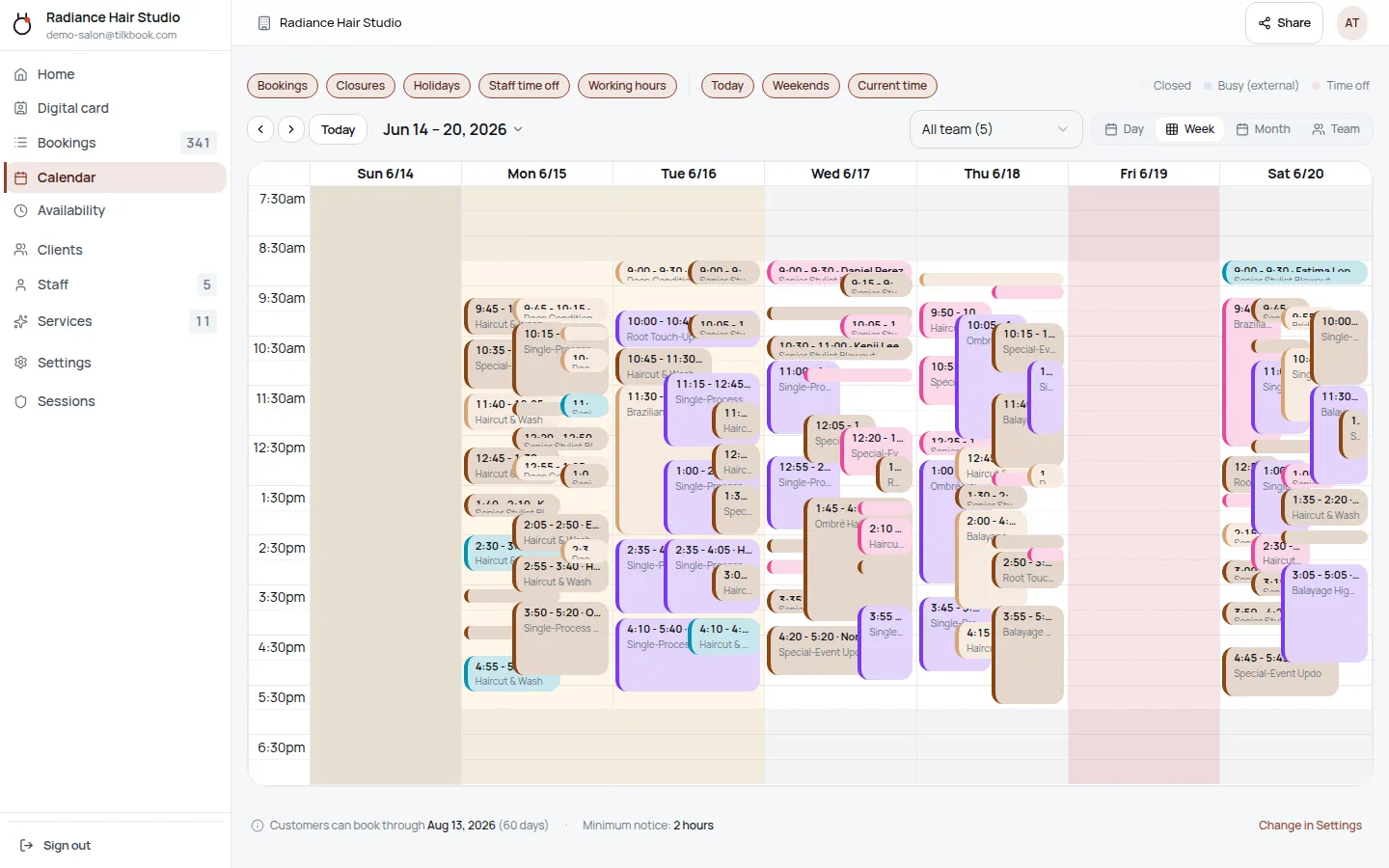
- Your tilkbook calendar — the booking carries the link so you can join from your admin dashboard
Because the link is unique per booking, there is no risk of two clients landing in the same room, and you never reuse a stale link from a previous session.
How this differs from a standalone video integration
It is worth being precise about what this is and is not. This is not a standalone Zoom-style video-conferencing integration with its own account and dashboard. tilkbook does not run its own video service. Instead, it uses Google Calendar’s built-in ability to create Google Meet links on calendar events. The practical upshot:
- You need a Google account that can create Meet links (most Google accounts can).
- You must have the Google Calendar integration connected — without it, no Meet link is generated.
- The link lives on the Google Calendar event, which is exactly where Google Meet expects it, so joining behaves like any normal Google Calendar meeting.
If you do not use Google Calendar, tilkbook will not generate a video link automatically; you would add a meeting link to each booking manually. For Microsoft users, the Outlook Calendar integration handles calendar busy-blocking, but automatic video links are a Google Calendar feature.
Compared to other tilkbook calendar features
Google Meet auto-linking is one capability of the broader Google Calendar integration, which also reads your calendar to block busy slots and writes confirmed bookings back two ways. If you only need busy-block import from a non-Google calendar, the read-only Apple Calendar and Outlook Calendar ICS paths cover that, but they do not create video links.
For a full view of what tilkbook includes free — calendar sync, the waitlist, email reminders, the digital business card and more — see the features overview and pricing. To browse every connection, visit the integrations directory.
Ready to offer virtual appointments with zero link-juggling? Claim your tilkbook page — free, unlimited bookings, live in minutes.
Integration FAQ.
Do I need a separate Google Meet or video account?
No. Google Meet links are generated through your connected Google Calendar — the same integration that syncs your bookings. There is no separate video subscription or Zoom-style account to set up; if your Google Calendar is connected, Meet links work.
Does every booking get a Google Meet link?
No — only services you mark as virtual. In-person services (a haircut, a massage, an in-clinic visit) do not get a Meet link. The toggle is per-service, so you can mix in-person and online services on the same booking page.
Where does the client find the Google Meet link?
The Meet link is included in the booking confirmation email the client receives and is attached to the calendar event. You see the same link in your tilkbook calendar event and in your Google Calendar, so both sides join the same meeting.
Is the Google Meet integration free?
Yes. Auto-creating Google Meet links for virtual services is part of the Google Calendar integration, which is included on every tilkbook plan including the free tier. You only need a Google account that can create Meet links.
What if I do not connect Google Calendar?
Then no Meet link is generated, because the link is created through Google Calendar. If you want automatic video links on your virtual bookings, connect Google Calendar first; without it, you would have to add a meeting link to each booking manually.
Connect your calendar.
Free to start — no card. Two-way sync on every plan, including free.